What To Check Before Choosing A Compact Desk Audio Setup For Music And Calls
A practical step-by-step guide to what to check before choosing a compact desk audio setup for music and calls, including preparation, instructions, common issues, tips, and next steps.
What To Check Before Choosing A Compact Desk Audio Setup For Music And Calls
Choosing a compact desk audio setup for both music and calls requires balancing sound quality, microphone clarity, and desk space. Before buying, you should evaluate your room acoustics, connectivity options, control convenience, and how the gear will handle both music playback and voice communication. This guide walks you through six practical checks, from defining your needs to testing the final setup, so you can avoid common pitfalls like poor mic pickup or tangled cables. It also covers preparation steps, quick-reference scenarios, common issues, and advanced tips, giving you a complete plan for a setup that serves both your listening and calling needs without cluttering your workspace.
Fast Answer
- Assess your room's echo and background noise first; a compact setup cannot overcome poor acoustics or a noisy environment, so check for hard surfaces and add soft furnishings if needed.
- List the devices you will connect (phone, computer, tablet) and the ports they have; choose a setup that supports simultaneous connections or easy switching so you can take calls without replugging cables.
Before You Start
- Measure your desk area and note the available space for speakers or a soundbar, keeping at least 20 centimeters of clearance from walls to allow bass ports to breathe.
- Inventory your devices and their audio connections: check if your computer has a headphone jack, USB ports, or only Bluetooth, and note the same for your phone or any other gear you plan to use.
- Think about how you will use the setup: if you take many video calls, prioritize clear voice pickup; if you listen to music all day, consider frequency response and bass depth.
- Set a realistic budget range but avoid attaching a number; decide if you are willing to buy separate speakers and a microphone or if a single all-in-one unit is enough.
Step-by-Step Instructions
Define Your Primary Use and Priorities
Begin by writing down exactly how you will use the audio setup each day. For example, do you listen to music for two hours and take one hour of calls, or is your work mostly calls with occasional music in between? This matters because a setup optimized for music may have strong bass and wide stereo separation, but it might lack a good built-in microphone or have delayed Bluetooth audio for calls. Conversely, a setup built for calls might have a clear voice mode but sound thin for music. List your top three priorities: sound quality, microphone clarity, or desk space. Then, assign a number to each: 1 for most important, 2 for next, and so on. Use this list to filter your choices later. For instance, if desk space is your number one, you might look for a single compact soundbar or a pair of small satellite speakers instead of a large subwoofer. If microphone quality is your top priority, you might plan to use a separate microphone rather than relying on built-in speakers. This initial clarity prevents you from being swayed by marketing claims about either music or calls, and helps you focus on features that genuinely matter for your routine.
Measure and Plan Your Desk Layout
Take measurements of your desk to know the exact footprint you can allow for speakers, a microphone, or a headphone stand. Use a tape measure to note the width, depth, and height of the space where you plan to place the audio gear. Also check the distance from your typical sitting position to the speakers, because that affects ideal speaker size and power. For a compact desk, you might have limited depth; for example, a long but shallow desk may suit soundbars or under-monitor audio bars better than tall speakers. Draw a simple top-view sketch on paper, marking the positions of your monitor, keyboard, and mouse. Then, identify spots where speakers could go without blocking your monitor or causing cable clutter. Remember to leave at least 5 cubic feet of clear space around speaker ports if they are rear- or bottom-firing. If you plan to use a separate microphone, consider a boom arm that attaches to the desk edge to save space. Also note power outlet locations: you may need extension cords or a power strip with surge protection. This measurement step helps you avoid buying gear that is too large or placing speakers in a way that causes acoustic reflections off your monitor or walls.
Check Your Device Connectivity and Switching
Examine the audio output options on your computer, phone, and any other device you plan to connect. Look for a 3.5mm headphone jack, USB ports, USB-C with audio alt mode, or Bluetooth. Write down which devices have which ports. For a compact setup, you might want a device that can connect to two sources at once and switch with a button or by pausing one source. This is handy if you take calls on your phone while playing music from your computer, because you can hear both without unplugging anything. If you rely solely on Bluetooth, check if the speakers support multipoint connection (connecting to two devices simultaneously), because not all do. If you need to connect via cable, ensure you have the right adapter, such as a USB-C to 3.5mm for modern laptops or phones that lack a headphone jack. Also consider latency: Bluetooth audio can have a delay, which is fine for music but may be noticeable during video calls if your voice lags. For calls, a wired connection or a low-latency codec is better. Write down your exact connection needs and take that list when shopping. This prevents you from buying gear that works with only one device or requires fiddly cable swapping every time you switch from music to a call.
Evaluate Microphone Quality for Calls
If you plan to use speakers for calls, test the built-in microphone in your actual room. Most speakers with microphones claim noise reduction, but you need to verify. Borrow a friend's speaker or visit a store that allows returns, and record a short voice memo on your computer or phone in the same position you normally sit. Listen to the recording for echo, background hum, and clarity. Speak normally at your usual volume, and ask a friend to call you while you type to see if your keystrokes are picked up. Also, test how the microphone handles your room's acoustic signature: if you have a lot of hard surfaces like glass or bare walls, your voice may sound tinny or echo. A good microphone might have a cardioid pattern that rejects sounds from behind, which helps if your speakers are behind the mic. Alternatively, consider a separate microphone on a boom arm: this gives you consistent voice pickup and often lets you position it close to your mouth. Check if your computer's operating system has settings to adjust microphone gain or noise suppression, and plan to enable those for better call quality. If you are using a headset, test both the microphone and the headphone sound for comfort over time. The goal is to ensure that your voice is clear and free of distracting echoes, which matters more than the speaker's audio quality during calls.
Assess Acoustic Environment and Sound Settings
Before finalizing your setup, evaluate your room's acoustics and your device's sound settings. Walk around your desk and note surfaces like windows, bookshelves, or bare walls. Hard surfaces cause sound reflections that muddy the audio you hear and interfere with microphone pickup. For a compact setup, you can improve sound quality by placing a small rug on the floor, adding a few soft items like pillows or stuffed animals on shelves, or hanging a fabric panel on a nearby wall. These do not need to be expensive. Also, check your operating system's sound settings: many computers have equalizer options, bass boost, or audio enhancements that you can adjust to suit your space. For example, if you have a small room, you may want to reduce bass slightly to avoid boominess. On the microphone side, look for noise suppression and echo cancellation features built into your computer or video conferencing app, and turn them on. Speak at your normal volume and have a friend give feedback on the call quality. If you hear a delay or your voice sounds robotic, try changing the Bluetooth codec or using a wired connection. This step ensures that your setup performs at its best in your specific room, not just in a showroom.
Test the Full Setup and Confirm Ergonomics
After your gear arrives or if you are testing a potential purchase, set it up exactly as you would for daily use. Place speakers at ear level, tilted slightly toward you if possible, and position any microphone within 15 centimeters of your mouth. Connect all cables and verify that power is reachable without stretching cables across walkways. Then, run a series of tests: play music with a range of genres from classical to bass-heavy electronic to see how the system handles dynamics. Take a call from a friend and ask about your clarity and background noise. Also, move around your head and shoulders to see if sound changes drastically; you may need to adjust speaker angle. Check that controls such as volume, mute, and Bluetooth pairing are easy to reach and intuitively located. Consider ergonomics: if you are using a headset, ensure the headband and ear cushions fit for extended use without pressure points. If you are using a separate microphone, ensure it does not block your view or reach to your keyboard. Finally, keep receipts and packaging in case you need to return or exchange items that do not meet your needs. This testing step solidifies that your compact setup works in practice, not just on paper.
Quick Reference
| Situation | Action | Why it helps |
|---|---|---|
| You notice that your voice echoes during calls. | Immediately reduce your speaker volume to about 70% and move the microphone closer to your mouth, then enable any echo cancellation feature in your call app. | Lower speaker volume reduces the chance of the mic picking up your own voice, and proximity to the mic improves signal-to-noise ratio, while echo cancellation filters out residual reverb. |
| Your music sounds thin and lacking in bass. | Adjust your computer's equalizer to boost low frequencies slightly (around 60-120 Hz) and ensure the speakers are not placed directly against the wall, leaving at least 10 cm of clearance. | Boosting the low end compensates for compact drivers, and wall clearance prevents bass cancellation from reflected sound waves. |
| You need to switch from playing music to taking a call without fiddling with cables. | Connect both your computer and phone to your speakers via Bluetooth multipoint (if supported) or use a 3.5mm cable for one and Bluetooth for the other, then use the speaker's input button to switch. | Having two active connections and a dedicated input button lets you toggle sources instantly, so you never miss a call and avoid unplugging and re-plugging cables. |
Common Issues
- Bluetooth audio delay causing your voice to lag on calls.: Switch to a wired connection (3.5mm or USB) for calls, or check if your speaker supports low-latency codecs like aptX Low Latency and enable that setting in your device's developer options (if available).
- Microphone picks up too much background noise like typing or traffic.: Position the microphone closer to your mouth (within 15 cm), enable noise suppression in your call app, and consider adding a simple foam windscreen or using a noise gate feature in your software.
- Speakers cause vibrations on your desk, making audio muddy.: Place foam isolation pads or rubber feet under the speakers to decouple them from the desk, and ensure they are not sitting on loose papers or objects that can rattle.
Advanced Tips
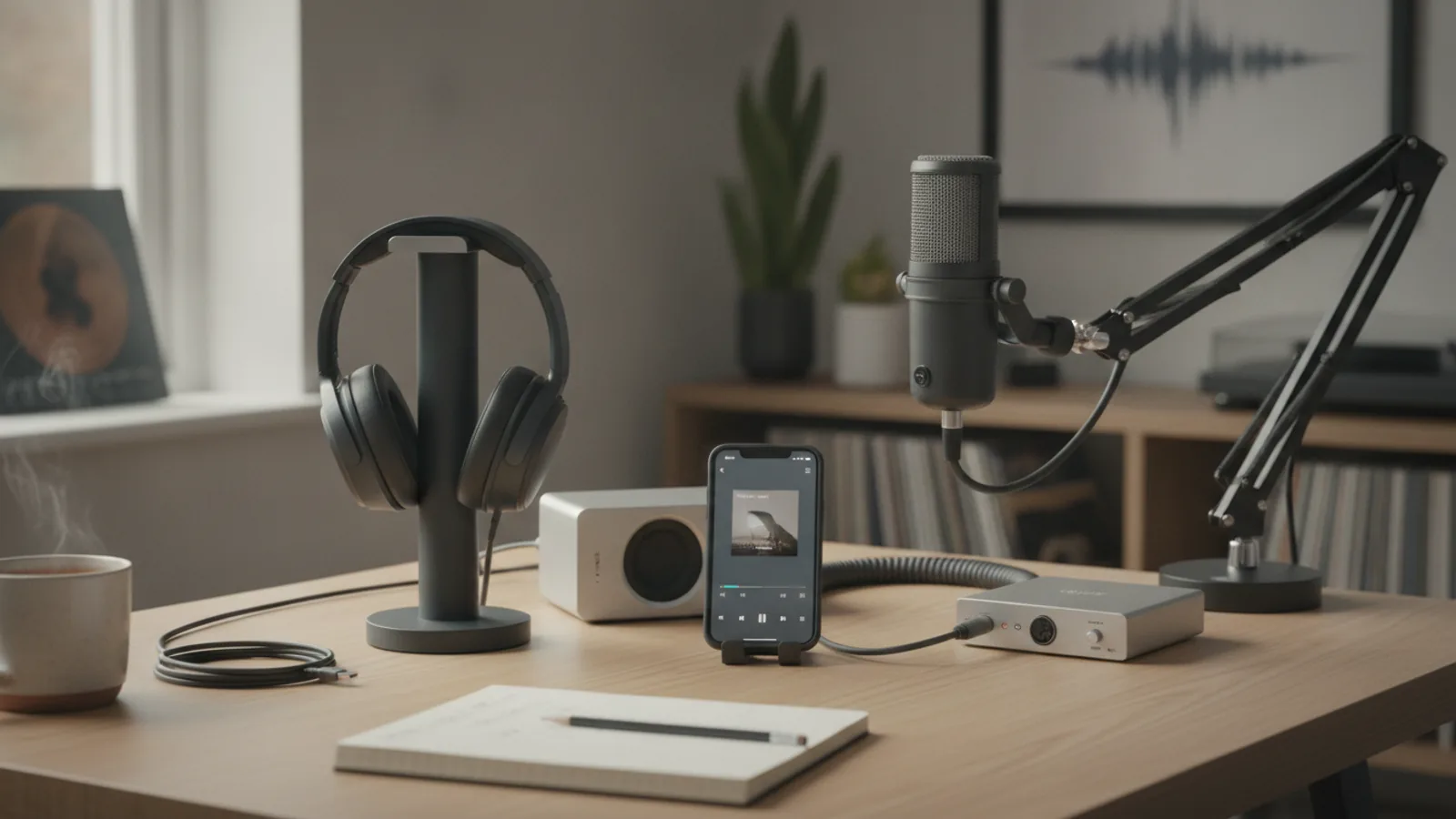
- Use a USB audio interface with a dedicated microphone input if you plan to grow your setup; it offers better preamps for a microphone and often includes headphone monitoring, giving you low-latency audio for calls.
- Install a small calibration microphone and use room correction software (if available for your device) to automatically flatten the frequency response of your speakers for your exact room, or manually adjust with a measurement app.
- Explore virtual surround or stereo widening features in your computer's sound settings to create a wider soundstage from compact speakers, but be cautious as these can enhance music but sometimes degrade voice clarity; toggle them off for calls.
Final Checklist
- I have measured my desk and confirmed the setup's footprint fits without blocking my monitor or keyboard.
- I have connected all my devices via the intended methods (wired or Bluetooth) and verified seamless switching between music and call sources.
- I have recorded a test clip and made a test call to confirm the microphone captures my voice clearly with minimal echo or background noise.
- I have adjusted sound settings and acoustic elements (like adding soft furnishings) to optimize my room's sound quality and comfort.
FAQ
Can I use a single compact speaker for both music and calls?
Yes, but it depends on the speaker's design. Look for a model that includes a built-in microphone with noise reduction and a toggle for music or call modes. However, for best call quality, a separate microphone on a boom arm is recommended, especially if you take many calls. Test the speaker's mic in your room before committing.
Is Bluetooth or wired better for a compact desk audio setup?
Wired connections (like 3.5mm or USB) offer lower latency and more reliable audio, which is crucial for calls. Bluetooth is more convenient for cable-free desk setups, but you must check the codec support and battery life. For a compact setup, a dual connectivity option (both wired and Bluetooth) that supports simultaneous connection is ideal for switching between music and calls.
Why does my speaker sound terrible during calls but fine for music?
This is often due to your room's acoustics and the speaker's speakerphone mode. In call mode, the speaker may activate an echo cancellation filter that reduces sound quality. Also, your voice might be picked up by the microphone and replayed, causing distortion. Try repositioning the speaker, lowering volume, or using a separate microphone to improve call clarity.