Common Mistakes When Setting Up A Music Streaming Setup That Keeps A Personal Collection Easy To Find
A practical step-by-step guide to common mistakes when setting up a music streaming setup that keeps a personal collection easy to find, including preparation, instructions, common issues, tips, and next steps.
Common Mistakes When Setting Up A Music Streaming Setup That Keeps A Personal Collection Easy To Find
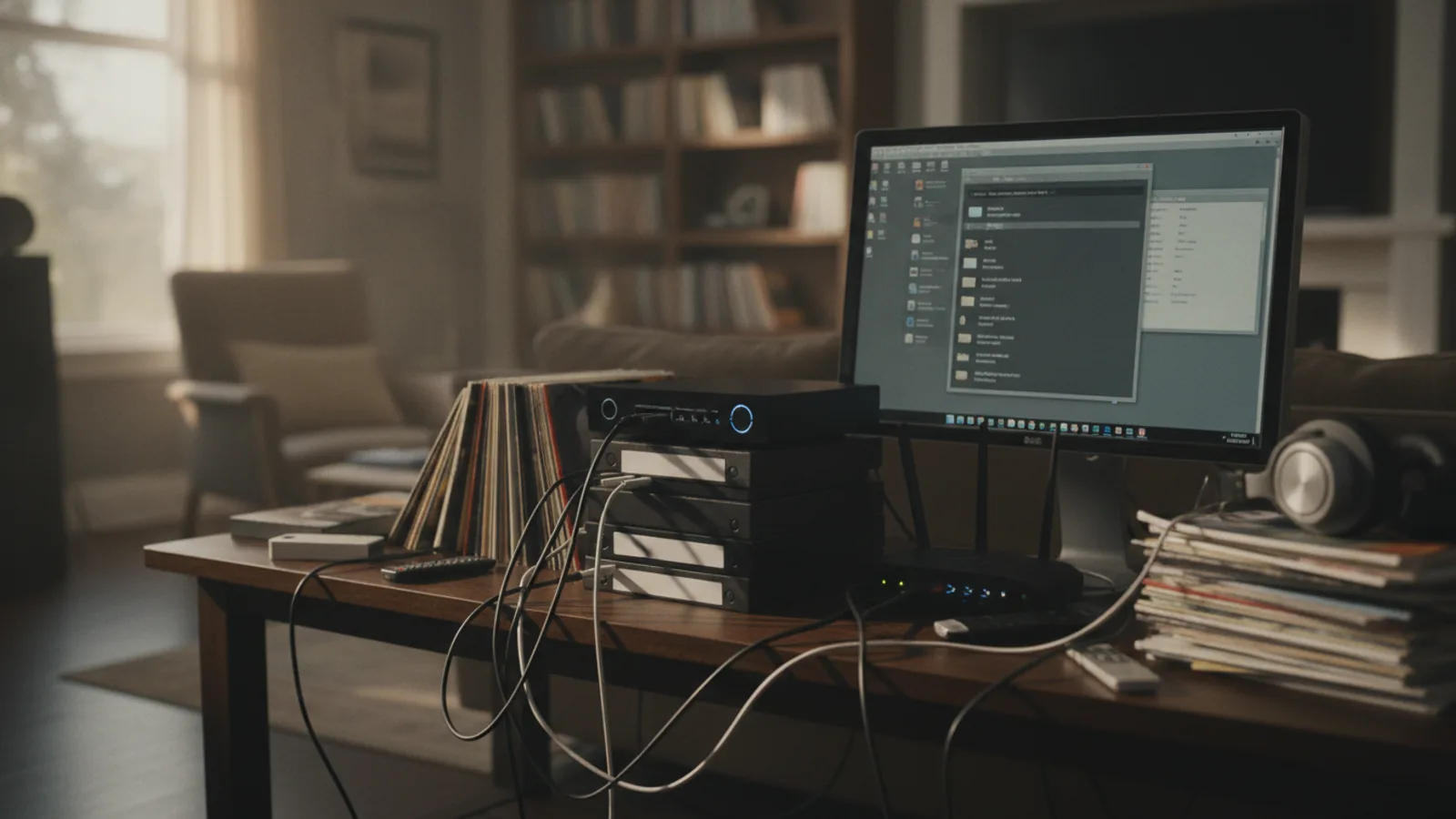
Setting up a music streaming setup for a personal collection often fails because people overlook organization, metadata, and backup habits. This guide walks you through the common mistakes and how to avoid them, ensuring your music library stays easy to find and enjoy.
Fast Answer
- Avoid scattering files across multiple folders; centralize your music in one root folder and maintain a consistent subfolder structure.
- Fix ID3 tags and album art before streaming; consistent metadata is the backbone of search and discovery.
Before You Start
- Gather all your music files from various devices and cloud storage into one list to see the full scope of your collection.
- Choose a simple folder naming scheme like 'Artist/Album' or 'Artist - Album' and stick to it for all new rips and downloads.
- Install a free ID3 tag editor tool on your computer to batch-edit metadata like title, artist, album, and track number.
- Set aside 30 minutes to an hour to clean up your music library, and consider it a one-time setup investment.
Step-by-Step Instructions
Centralize Your Music Files
Begin by gathering every music file you own from all devices, external drives, cloud storage, and old phone memory. Create one main folder on your main computer or home server, and name it clearly, like 'Music Library' or 'My Music'. Inside that folder, build a simple hierarchy: split it into subfolders for each artist and albums within each artist. This creates a predictable path for every file, which your streaming software can index easily. As you move files, keep track of any that are duplicates or unlabeled, and place them in a temporary 'Needs Sorting' folder. After moving files, open your streaming software and confirm that it scans this new location and shows the same number of tracks you moved. Doing this check ensures your library isn't split across multiple places, which is a common mistake that leads to gaps in your collection.
Normalize Your Folder and File Naming
Decide on a single naming convention for your files and folders, and apply it to every track. A straightforward pattern like 'Artist - Album - Track Number - Song Title.mp3' makes sorting and searching predictable. For folders, use 'Artist/Album' with the year in parentheses, like 'Neutral Milk Hotel/In the Aeroplane Over the Sea (1998)'. Avoid special characters like slashes or question marks in filenames, as they can confuse some software. During this step, carefully rename files either manually or using a batch rename tool that lets you preview changes. After renaming, scroll through your library in the streaming interface and verify that alphabetic sorting places your artists in the correct order. This check matters because a consistent naming scheme prevents duplicate entries and makes future additions seamless—you'll always know exactly where to put a new album.
Audit and Repair ID3 Tags
Open your tag editor and scan your entire library. For each song, ensure that the title, artist, album, artist, year, genre, and track number are filled in correctly and consistently. Pay special attention to albums where the artist is listed as 'Various Artists'—make sure each song has its own contributing artist in the 'artist' field. Correct any misspellings or partial tags, and use an online database to fetch missing metadata if you have internet access. Also, embed album art directly into each file if possible, as this avoids missing thumbnails. After editing, save all changes and replay a few tracks in your streaming player to confirm that the tags appear correctly and the art shows. This audit is critical because streaming servers rely heavily on metadata to group album tracks into an album view; incorrect tags cause fragmented albums.
Eliminate Duplicates and Unify Versions
Before you start streaming, remove duplicate tracks that may be clogging your collection. Use a duplicate finder tool that examines file hashes or tags to identify identical songs. Decide which copy to keep—ideally the one with the best bitrate or the one that is properly tagged. Delete the duplicates carefully, but if you're unsure, move them to a backup folder first. Also, address different versions of the same song, like a live version vs. a studio version. They should be clearly labeled in the title (like 'Live at...' or 'Remastered') so they don't appear as duplicates. After cleaning, search for a common artist in your streaming software and check that the album count looks correct with no unexplained repeats. Removing duplicates reduces clutter and ensures that your search results are accurate, which otherwise confuses you later when you look for a specific song.
Set Up a Sensible Folder-Following Structure
Configure your music streaming software to watch your main library folder and automatically import any new music you add. In the software's settings, find the library or media folder section and point it to the root folder you created earlier. Enable options like 'automatically scan for changes' or 'watch folders' if available. Then place a few new test files into the library—one as a new album and one as a single track—and wait a few minutes to see if they appear in your library. This check is vital because if the software isn't set to follow the folder, you might spend hours manually telling it to rescan every time you add music. A proper watch setup makes your streaming system feel seamless: you buy or rip music, drop it in, and it's available everywhere instantly.
Test Search and Playback Across Devices
After everything is set up, spend time actively testing your setup. Search for songs, artists, and albums using the search bar in your streaming app, ensuring results come back quickly and accurately. Play a few full albums to confirm artwork and track listing are correct. Also, verify that your collection appears on any other devices you use, like your phone or web player, and that the library syncs without errors. If you notice missing tracks or broken metadata, check the file path and tags again. This final test is your safety net: it catches issues that might not surface until you're in a different room or offline. Knowing your search works reliably means you'll never get stuck digging through a messy file explorer again.
Quick Reference
| Situation | Action | Why it helps |
|---|---|---|
| You just added a new album but it doesn't appear in your streaming library. | Check that the album file is in the correct folder and that the folder structure matches your naming scheme; then trigger a manual rescan in your streaming software. | The software may have missed the change if it's not set to automatically watch the folder, or the file path might be outside your library root. |
| Some of your album art is missing or shows the wrong image. | Open the tag editor, select the affected tracks, and manually add the correct cover art from your computer or an online database, then save and let the software rescan. | Missing or incorrect art is usually due to missing embedded art or incorrect album names; fixing tags resolves it for all players. |
| You notice duplicate songs after scanning your library. | Run a duplicate finder tool, identify the copies, and keep the one with the best quality, then delete the rest or move them to a backup folder before deleting. | Duplicates confuse your streaming library and take up unnecessary space; removing them makes search results clean and accurate. |
Common Issues
- Tracks are split into separate albums because of different album names or artists.: Use a tag editor to ensure every track from the same album shares the exact same album name and album artist, and consider using the 'album artist' field to group compilations.
- Newly added music is not automatically visible in the streaming app.: Verify the 'folder watching' setting in your software is enabled and points to the main library folder; if not, manually rescan or set up a scheduled rescan.
- Search results are slow or unresponsive when browsing a large collection.: Break your library into smaller folders by alphabetical ranges or genres, and make sure your streaming server can handle the size; also consider upgrading your storage device.
Advanced Tips
- Use symbolic links on your server to let you store music files on separate physical drives but present them as one unified folder structure for the streaming app.
- Set up automatic backup of your library folder to an external drive or cloud service, but be sure to exclude the software's cache and temporary files.
- For truly rare or live tracks, add a custom tag like 'Remastered' or 'Live 2021' in the title to prevent them from being grouped with studio versions.
Final Checklist
- All music files are in one root folder with a consistent subfolder structure by artist and album.
- Every audio file has complete and correct ID3 tags, including title, artist, album, year, genre, track number, and embedded album art.
- Your streaming software is configured to watch that folder and automatically import any new files you drop in.
- Search and playback work correctly across at least two devices, and duplicates have been removed.
FAQ
How often should I organize my music library to prevent clutter?
It's best to do a quick cleanup every time you add a batch of new music, which takes only a few minutes. Additionally, set aside a longer session every month or two to check for duplicates and fix any missing tags, so your library stays tidy.
Can I use cloud storage to sync my library across devices?
Yes, you can, but be aware that cloud storage might create conflicts if you edit files on multiple devices. Keep your main library on a primary device or server, and use cloud sync only as a backup or for streaming in addition to your setup, ensuring you follow the same folder structure.
Is it better to use lossless formats like FLAC or high-quality MP3 files for streaming?
If your streaming setup supports lossless formats and you have enough storage, FLAC is great for preserving audio quality. Otherwise, high-bitrate MP3 (like 320 kbps) works fine for most listeners. Just ensure that whatever format you choose, the tags are consistent and your player can handle the format.